Settings & API Keys
PatchWork's Settings panel is where you configure how it talks to generation backends — including direct API access bypassing G-Labs when you want it.
Open: Left sidebar → SYSTEM → Settings.
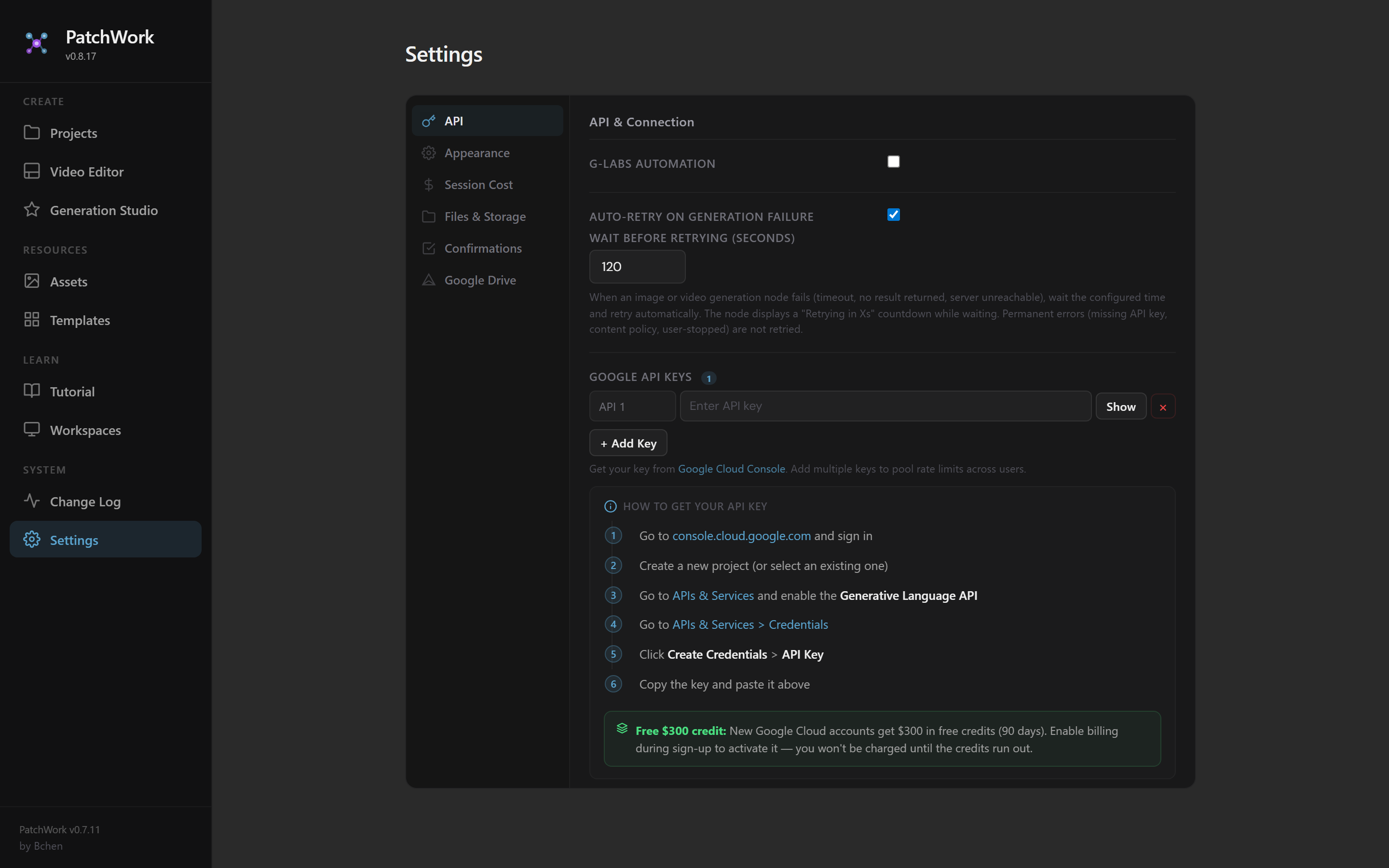
The Settings sections
The left side of the Settings panel has tabs:
- API — model API keys and connection config
- Appearance — theme, sidebar visibility, etc.
- Session Cost — track per-session spend
- Files & Storage — where outputs land, R2 buckets, etc.
- Confirmations — destructive-action prompts
- Google Drive — Drive integration setup
API & Connection
The main config area. Two paths for image / video generation:
Via G-Labs (our pipeline's default)- PatchWork talks to a local G-Labs backend (port 8765) via a cloudflared tunnel. G-Labs proxies the calls to NanoBanana 2 / Veo 3.1 / etc. The tunnel URL goes in the G-Labs Server URL field.
Direct API (Google Gemini)- Skip G-Labs entirely. PatchWork calls Google's Generative Language API directly using a Google API key you provide. Faster (no proxy), but requires: - Your own Google Cloud account - Generative Language API enabled - An API key created and pasted into PatchWork
G-Labs Automation toggle
In the API tab there's a G-LABS AUTOMATION toggle. When ON, PatchWork uses the tunnel URL for everything. When OFF, the direct API path is used (if Google API keys are configured).
Auto-retry on generation failure
Below G-Labs Automation: an AUTO-RETRY ON GENERATION FAILURE toggle + a "wait before retrying (seconds)" field. Defaults to retry on failure with a configurable backoff (default 120 seconds).
When a video generation fails (e.g., server unreachable), this automatically waits the configured time and retries. The node displays "Retrying in Ns" countdown. Permanent errors (missing API key, content policy) are not retried.
Google API Keys (multiple)
The Settings has a GOOGLE API KEYS section where you can add MULTIPLE keys. Multiple keys = pool rate limits across them. Each key has a label and a show/hide toggle.
Getting a key:
- Go to console.cloud.google.com and sign in
- Create a new project (or select an existing one)
- Go to APIs & Services → enable the Generative Language API
- Go to APIs & Services → Credentials
- Click Create Credentials → API Key
- Copy the key and paste it into PatchWork
The Settings panel shows this exact onboarding flow with numbered steps — match those steps in your Google Cloud console.
Free credit available
New Google Cloud accounts get $300 in free credits valid for 90 days. Enabling billing during sign-up unlocks the credit; you won't be charged until the credit runs out. Useful if you're trialing the direct-API path before committing to costs.
Session Cost tab
Tracks generation cost in the current session — useful for getting a feel for what a workflow run actually costs.
- Per-model breakdown (NanoBanana 2 vs Veo 3.1)
- Per-project breakdown
- Running total since the session started
Numbers reset on each session unless you've configured persistent cost tracking.
Files & Storage
Configures:
- Output directory — where local copies of generations are saved
- R2 bucket — which bucket Asset uploads target (default is the shared PatchWork bucket; advanced users can point at their own)
- Cache behavior — when to wipe local cache automatically
Confirmations
Destructive-action prompts. Toggle these on/off:
- "Confirm before deleting a node"
- "Confirm before clearing the canvas"
- "Confirm before wiping cache"
Useful when you're learning PatchWork (leave confirmations on); annoying once you know what you're doing (turn them off selectively).
Google Drive integration
Setting up: Settings → Google Drive → Connect. OAuth flow logs you into your Google account and grants PatchWork access.
What it enables:
- Save Asset uploads to a Drive folder (mirror of R2)
- Export generated workflows directly to Drive
- Pull
.nbflowfiles from Drive into PatchWork without downloading - Sync project state to Drive for backup / cross-machine access
Useful for teams who want everything in Drive instead of local downloads + R2.
When you're ready
→ Next: Chapter 14 — Troubleshooting. The final chapter — reference material for when something breaks.
(For Sheets-driven variants, see Chapter 3 — Driving Variants from a Sheet.)