Templates
When you click New Project in PatchWork, you see a template chooser. These are pre-built workflow shapes — starting points that save you from wiring everything from scratch.
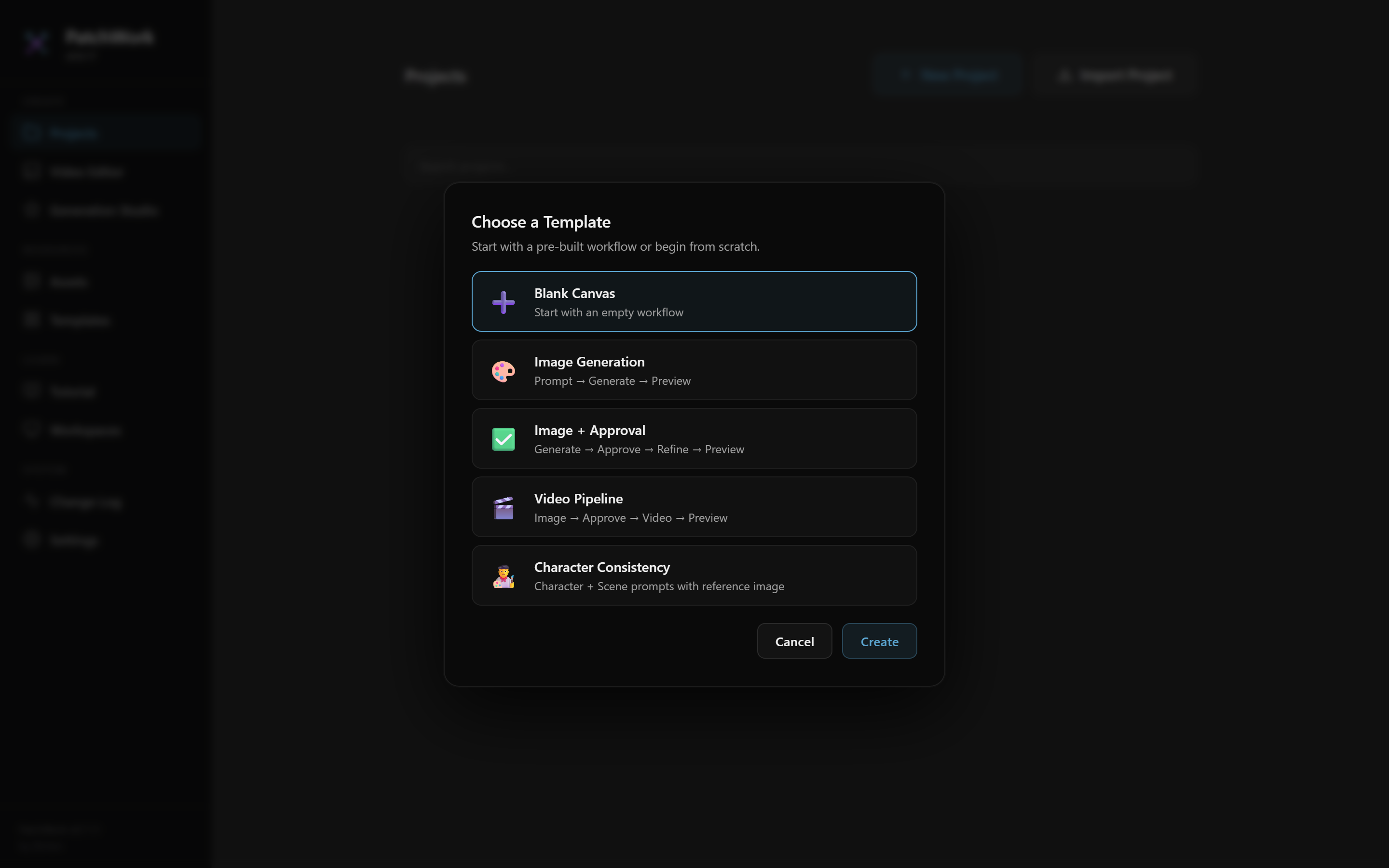
The built-in templates
| Template | Shape | Use when |
|---|---|---|
| Blank Canvas | Empty | You want to build everything by hand or paste a full .nbflow |
| Image Generation | Prompt → Generate → Preview | One-off image gen test |
| Image + Approval | Generate → Approve → Refine → Preview | You want approval gates in the loop |
| Video Pipeline | Image → Approve → Video → Preview | Standard image-then-video flow (closest to our pipeline's pattern) |
| Character Consistency | Character + Scene prompts with reference image | Building avatar-based workflows from scratch |
When to use each
Blank Canvas- You know exactly what you're building. You're pasting a
.nbflow, or you want to construct a non-standard graph that doesn't fit any template. Image Generation- You want to generate a few images with different prompts and pick the best one. No need for downstream video.
Image + Approval- Same as Image Generation, but you want explicit approval gates between candidates and downstream consumers. Useful when iterating.
Video Pipeline- The canonical short-form video pattern — generate a still, pick the best one, animate it into video. Our pipeline produces workflows that follow this shape (just with more scenes wired together).
Character Consistency- You're building an avatar-driven workflow. Has the character reference Media node pre-wired and ready for you to upload the 3-panel reference photo.
Templates vs. our pipeline
Our pipeline (Manager + Script Writer + Visual Planner + PatchWork Importer) produces a .nbflow from scratch based on your brief. The templates here are for cases where the pipeline isn't a fit:
- You want to learn PatchWork's mechanics by building manually
- You're prototyping a new workflow type
- You have a specific creative idea that doesn't map to the pipeline's standard structure
For everyday production work, don't use templates — let the pipeline build a complete workflow.
Saving your own custom templates
If you find yourself rebuilding the same workflow shape repeatedly, you can save it as a custom template:
- Build the workflow on the canvas
- Strip out any production-specific content (prompts, reference images) — leave just the node structure
- File → Save as Template (or similar; depends on PatchWork version)
- Name and describe it
- Next time you click New Project, your saved template appears in the chooser
This is useful for teams with a specific in-house workflow pattern (e.g., "our 5-scene PiP recipe template") that doesn't match the built-in shapes.
When you're ready
→ Next: Video Editor & AI Label Trick — PatchWork's in-app timeline for stitching clips, plus the AI Label Trick for TikTok.